01Simulators, straight from the source
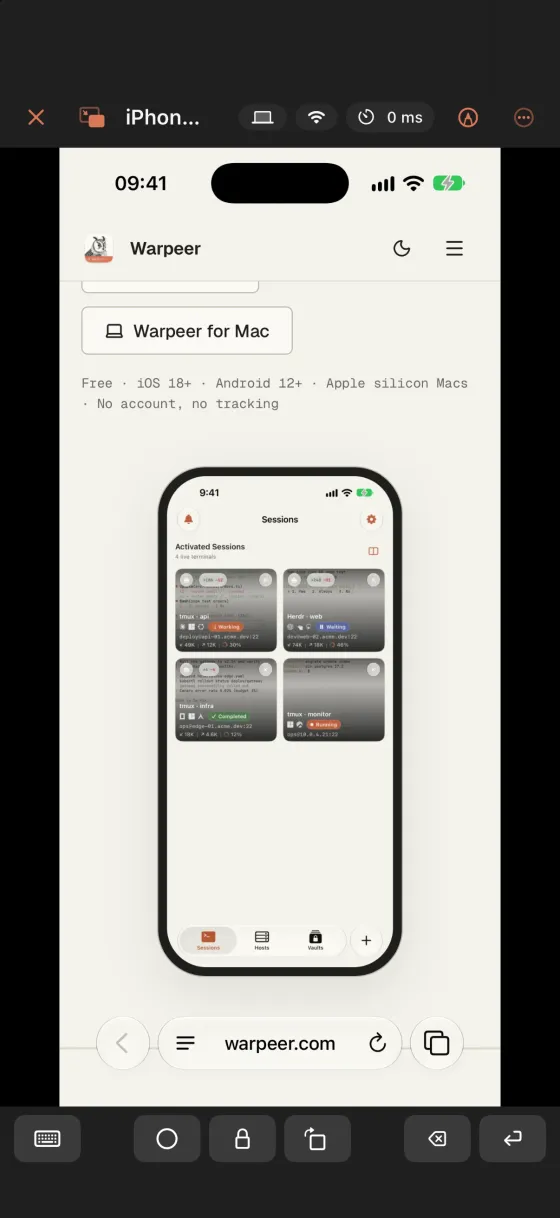
With Xcode 27 or later on the Mac, Warpeer shows a booted iOS simulator directly from the simulator itself: no Simulator window, no Screen Sharing, just the device screen, sharp and live. Android emulators and USB devices come through adb the same way.
02Touch it like the device
One finger is a finger: tap, swipe and long press. Two fingers pan and a pinch zooms. The key bar turns into the device’s own keys, Home, Lock and Rotate on iOS and Back, Home and Recent Apps on Android. Text you type arrives as typed; an iOS simulator takes Chinese and emoji too.
03It finds you in the terminal
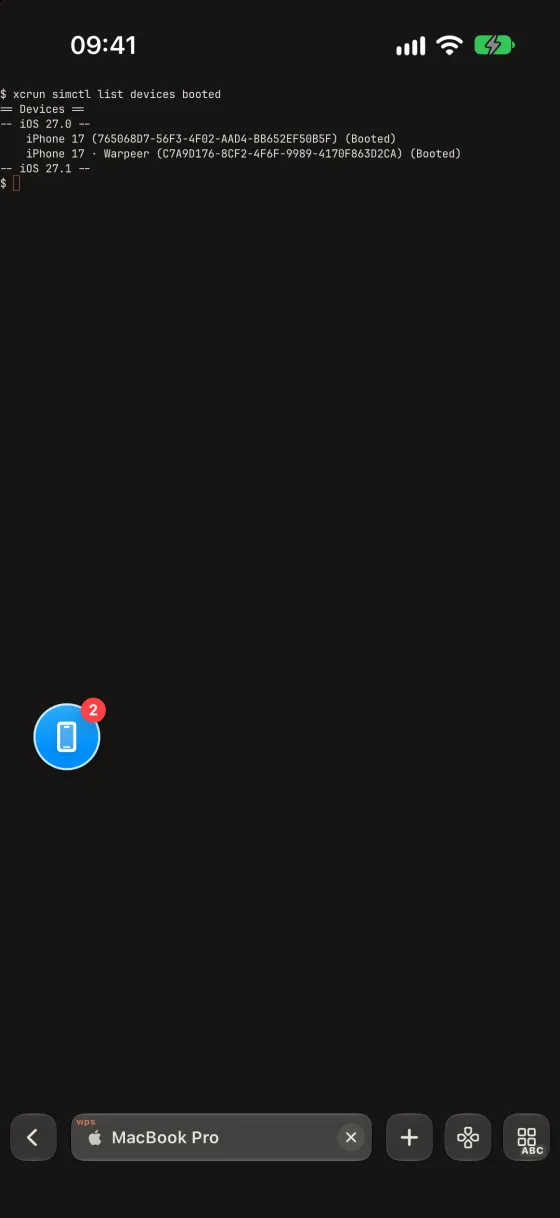
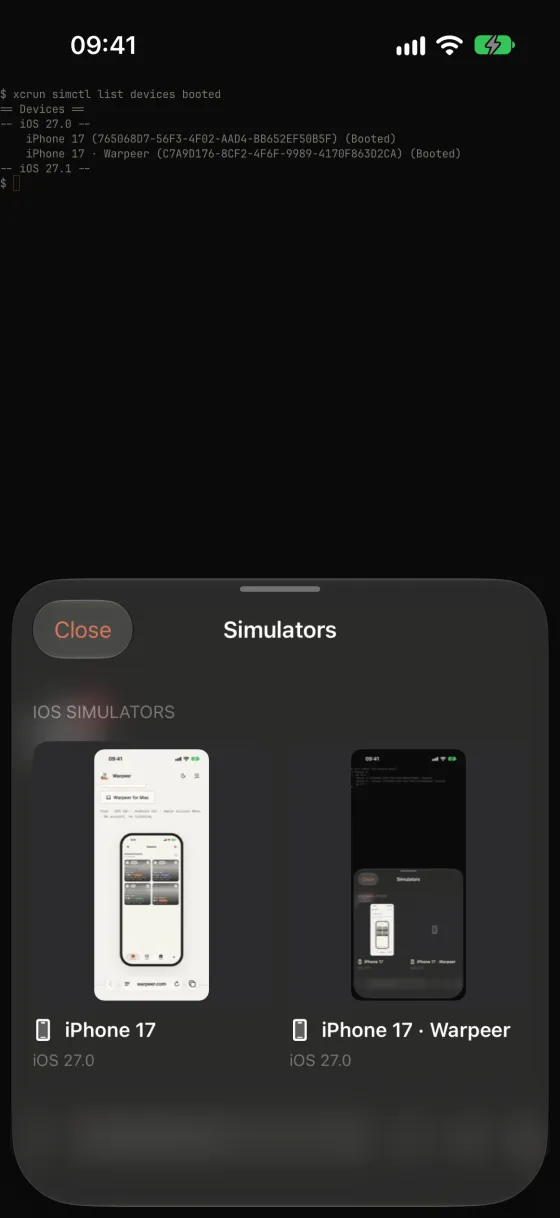
When the host of your terminal tab has a booted simulator or a running emulator, a ball with a count floats over the terminal. Tap it to see each device with a screenshot, iOS and Android apart, and open one in a tap. Drag the ball anywhere out of your way; it stays where you leave it.
04One window, the whole screen
Tap Windows in a remote desktop to see every window on the Mac as a card, simulators first. With screen recording allowed on the Mac, each card shows the window’s title and its own uncovered picture. Pick one: its app comes forward and your iPhone locks onto that window, follows it when it moves and returns to the whole desktop when it closes. Warpeer never resizes or moves your windows.